STEP 1: Go to Competitions
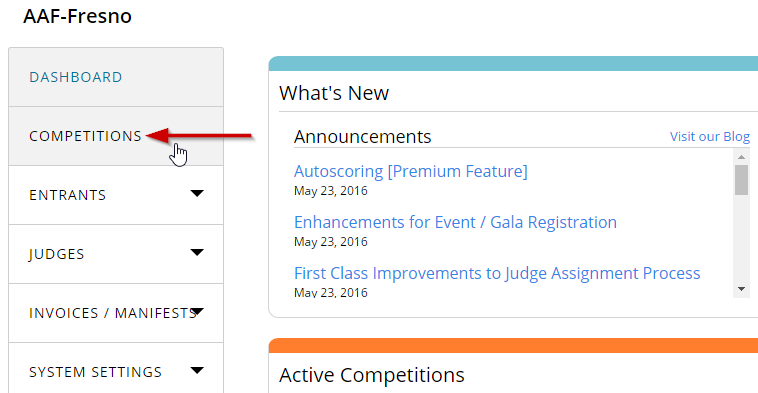
- From Dashboard click on Competitions in the left-hand menu.
STEP 2: Open Settings for the target program
- Click Settings next to the program you want to set up categories for.

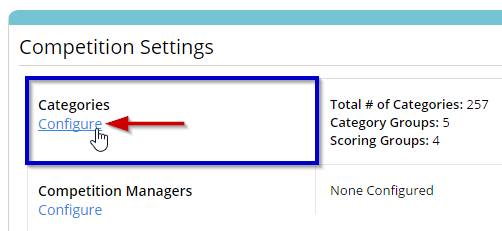
STEP 3: Click Configure in the Categories section
- Under the Program Settings locate Categories section and click Configure underneath.
STEP 4: Click Add Subcategory
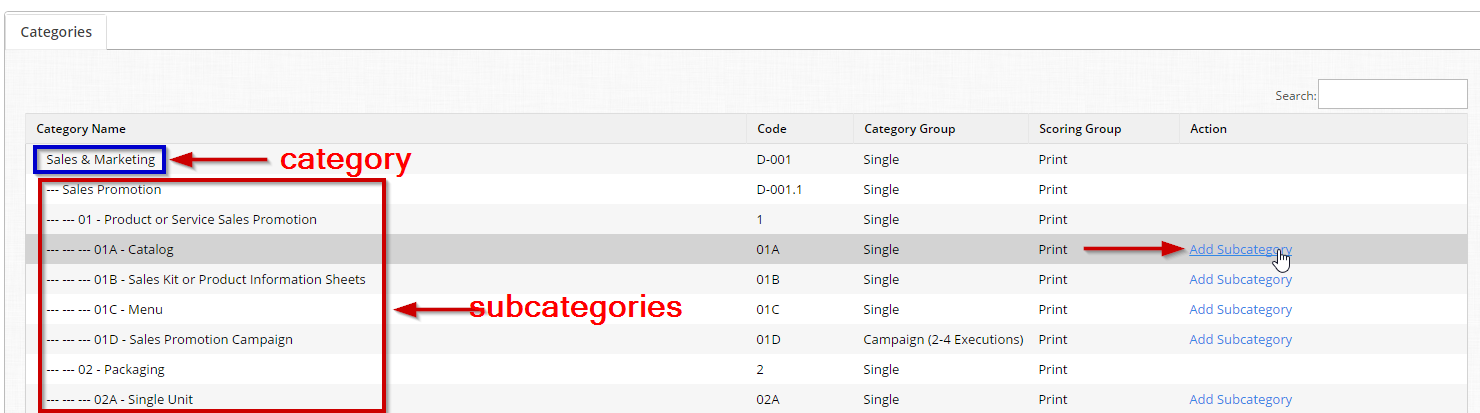
- To add the subcategory for an existing category, click Add Subcategory link next to the target parent category.
STEP 5: Define the new subcategory
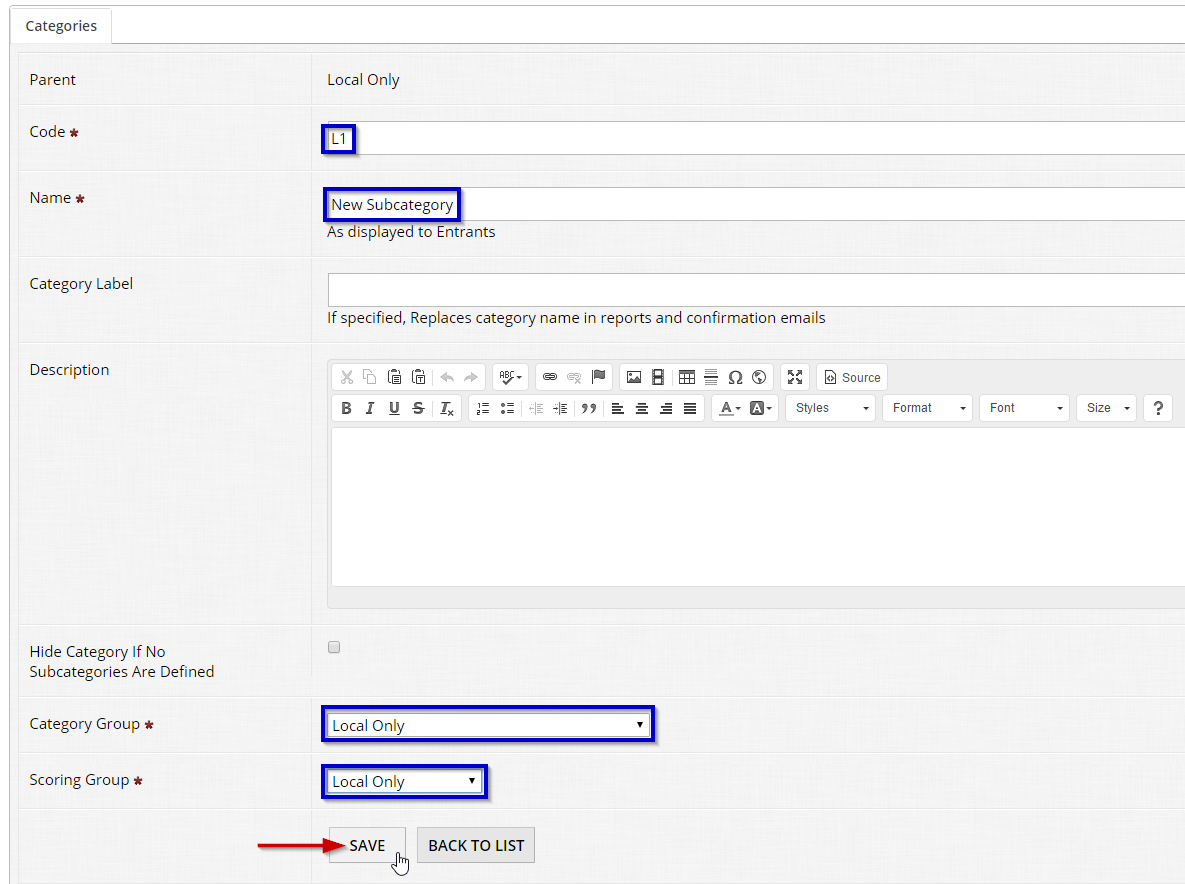
- Fill in the required fields: Code and Name
- Select Category Group and Scoring Group from the respective drop-down lists.
- Populate any other fields you deem necessary.
- Click Save to create the new subcategory.
STEP 6: Check that the new subcategory appears in the list
- Go back to the list of Categories and see that your subcategory has been added properly.
- You can change it settings by clicking Select, or remove it by clicking Delete.
