Viewing Categories and Adding Subcategories
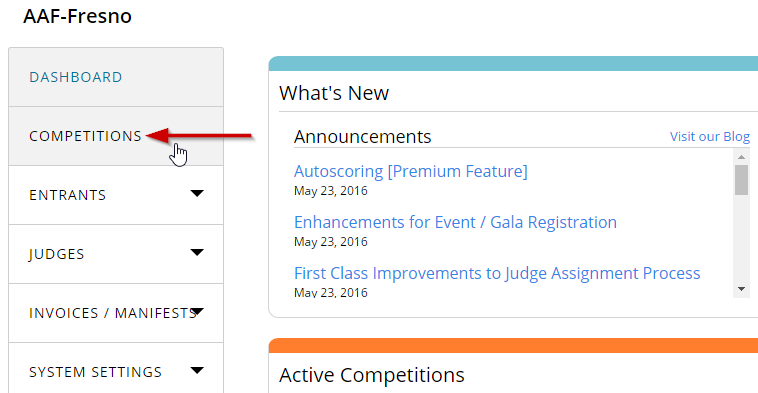
STEP 1: Go to Competitions
From Dashboard click on Competitions in the left-hand menu.
Click Settings next to the program you want to set up categories for.

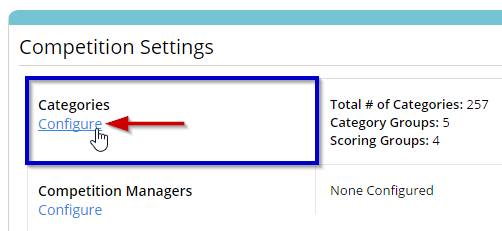
Under the Program Settings locate Categories section and click Configure underneath.
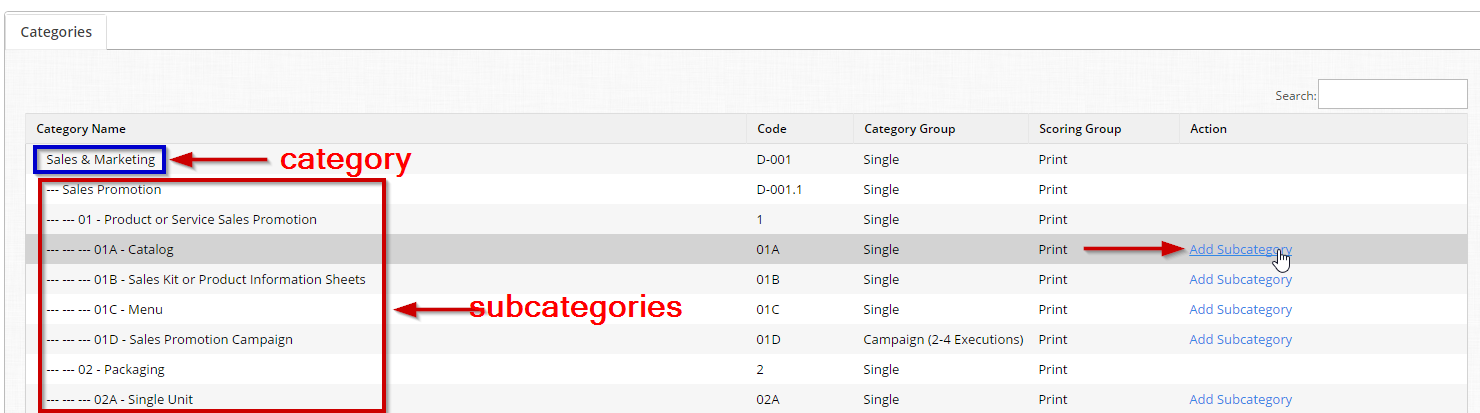
STEP 4: Click Add Subcategory
To add the subcategory for an existing category, click Add Subcategory link next to the target parent category.
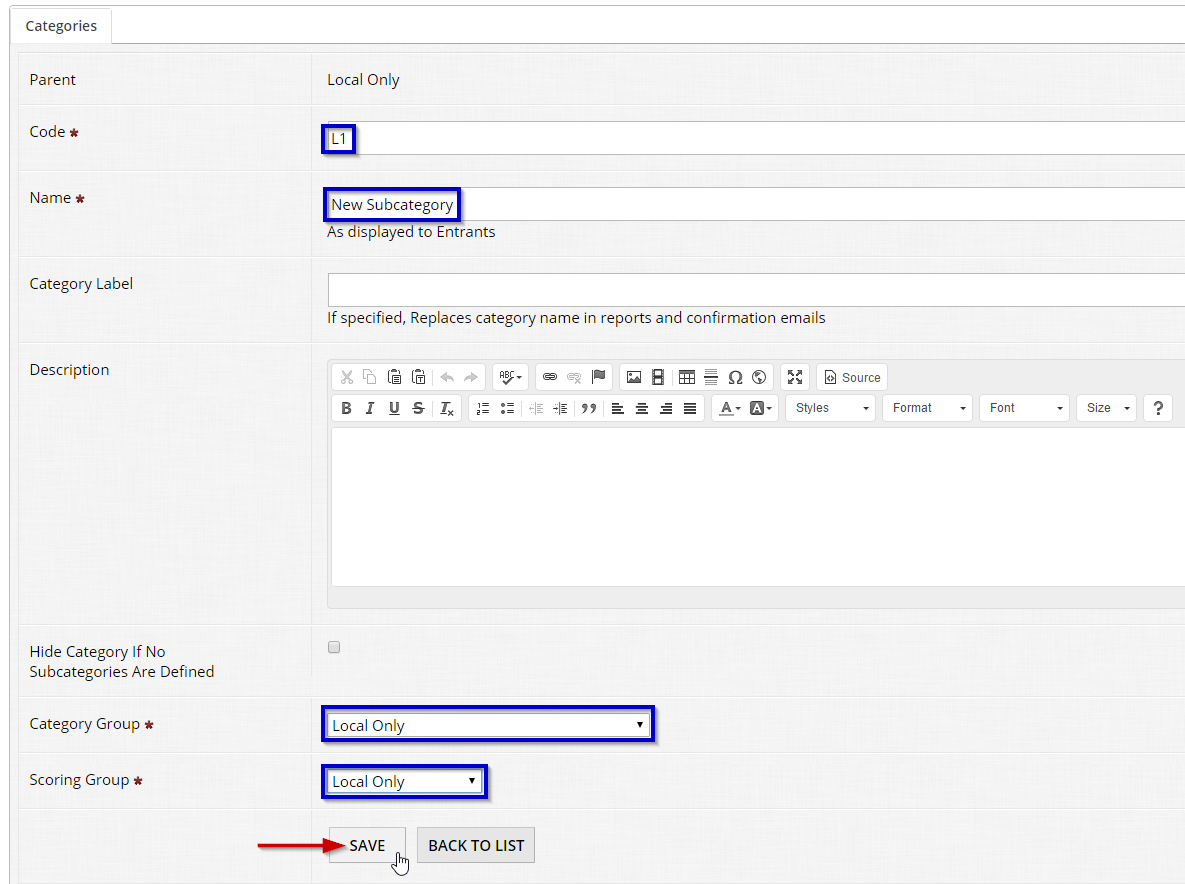
Fill in the required fields: Code and Name
Select Category Group and Scoring Group from the respective drop-down lists.
Populate any other fields you deem necessary.
Click Save to create the new subcategory.
Go back to the list of Categories and see that your subcategory has been added properly.
You can change it settings by clicking Select, or remove it by clicking Delete.
