Approve or Disapprove an Entry
This will show you how to approve or disapprove an entry if you have enabled "Require all Entries to be approved..." under "Advanced' in the "Round Settings" drop-down
STEP 1: View Your Competitions
From your OpenWater Dashboard, find and click the Competitions tab on the left side navigation bar

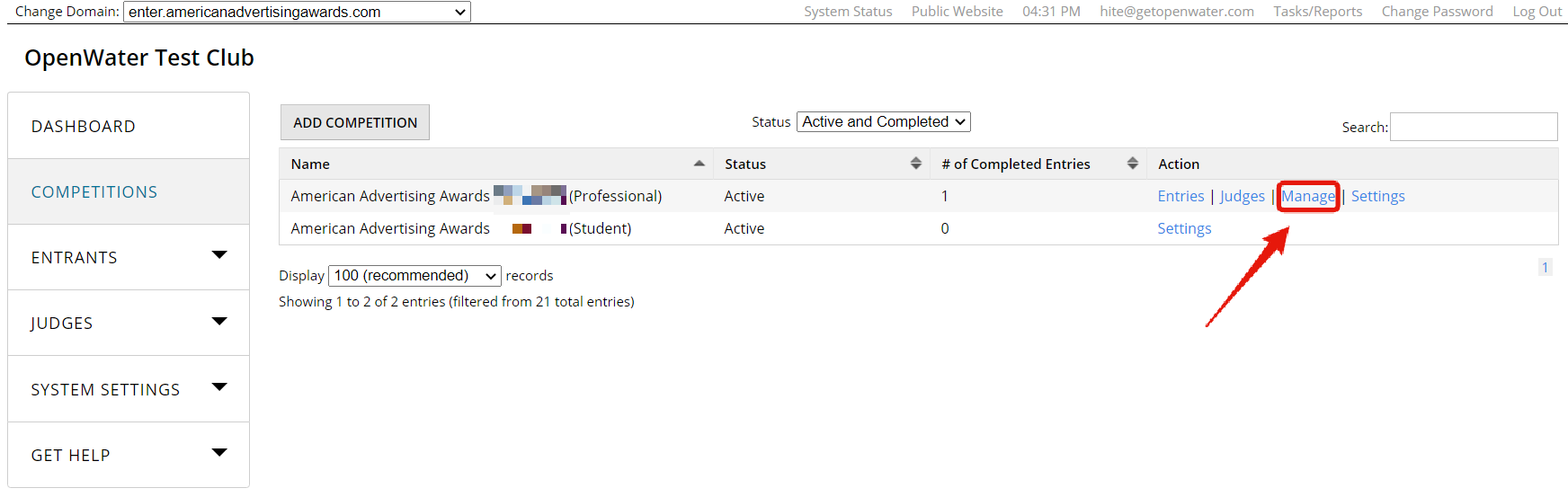
STEP 2: Manage Your Competition
After clicking on the Competitions tab, look to the right to find and click on "Manage"
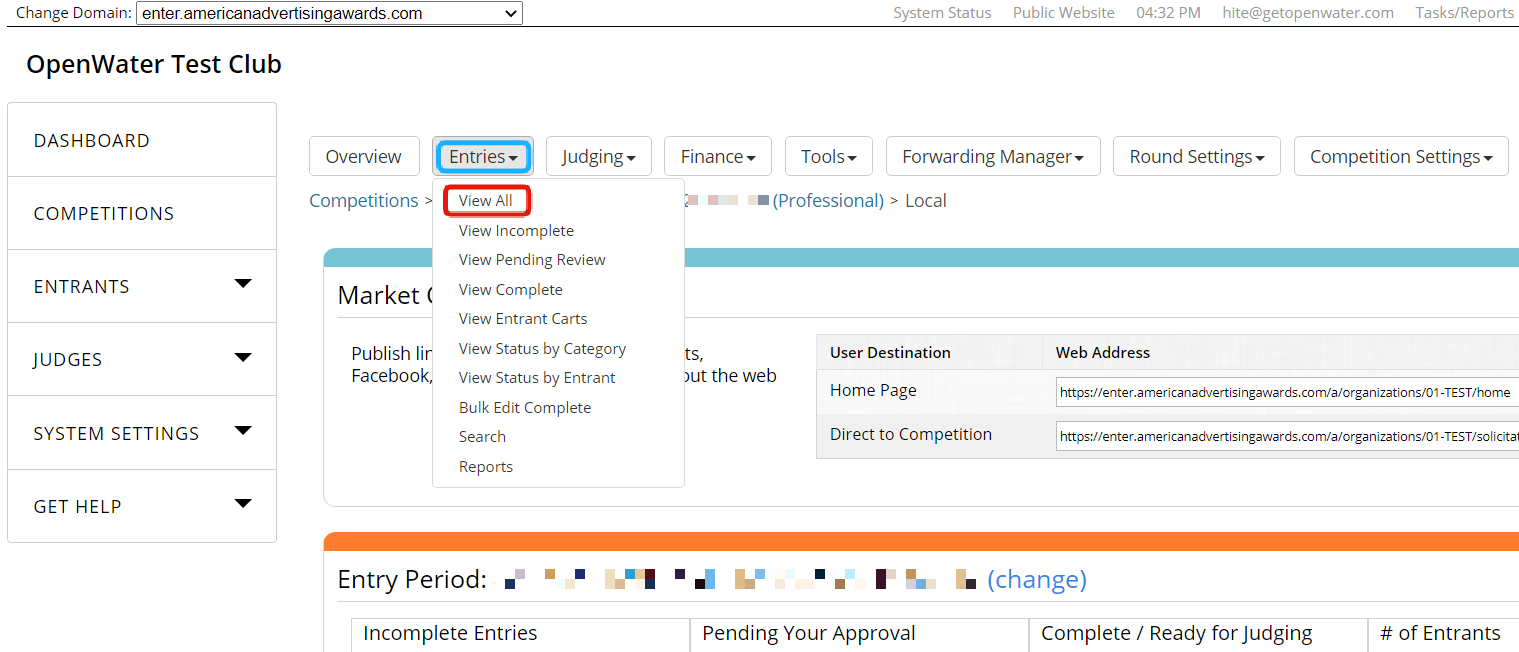
STEP 3: View All Entries
Open the "Entries" drop-down and click "View All"
STEP 4: Select an Entry
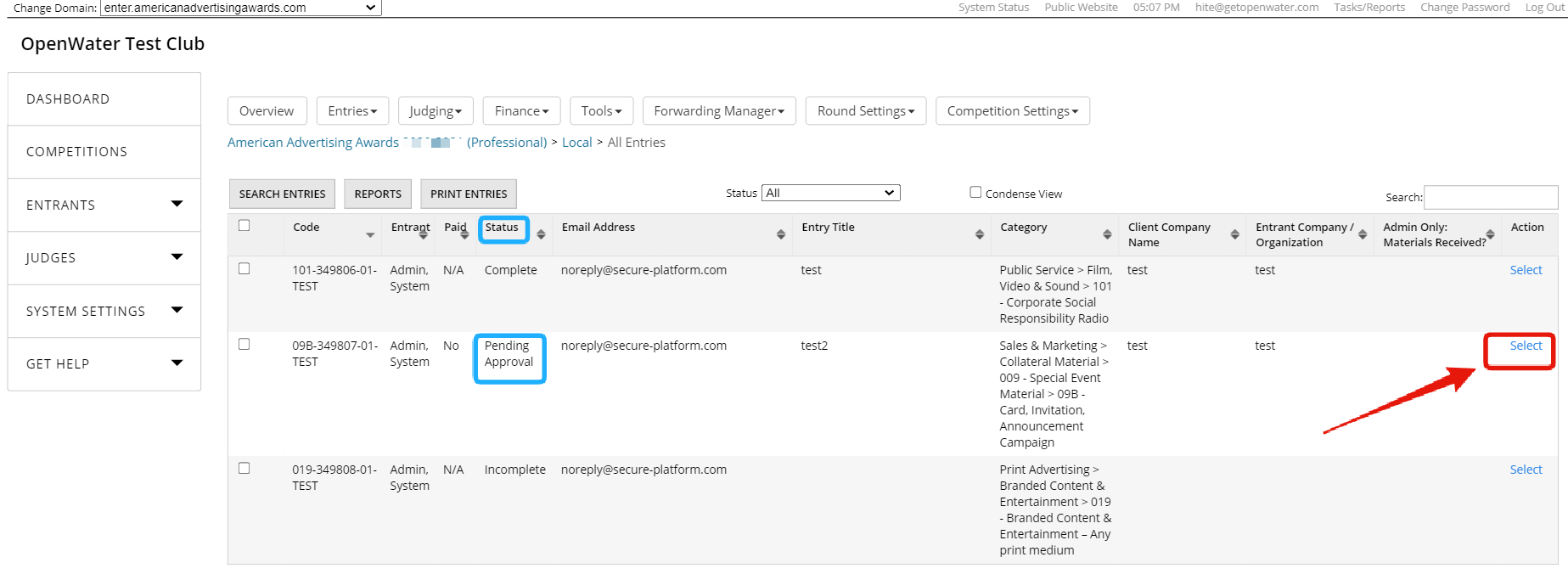
Find an entry listed as "Pending Approval" and open it by clicking "Select" on the right-hand side, under the "Action" header
Note: clicking on the "Status" header will sort the entries, making it easier to find those with pending approval
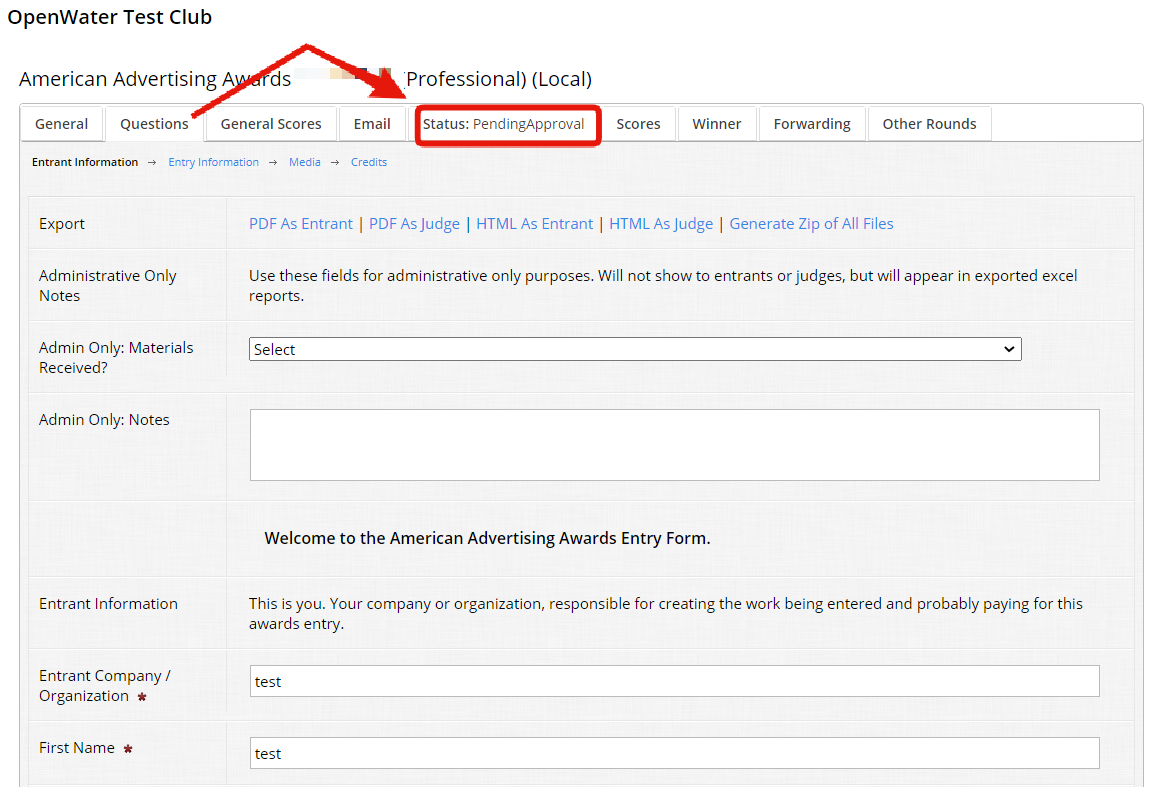
STEP 5: Switch to the "Status" Tab
Find and click on the "Status" tab
STEP 6: Approve or Disapprove the Entry
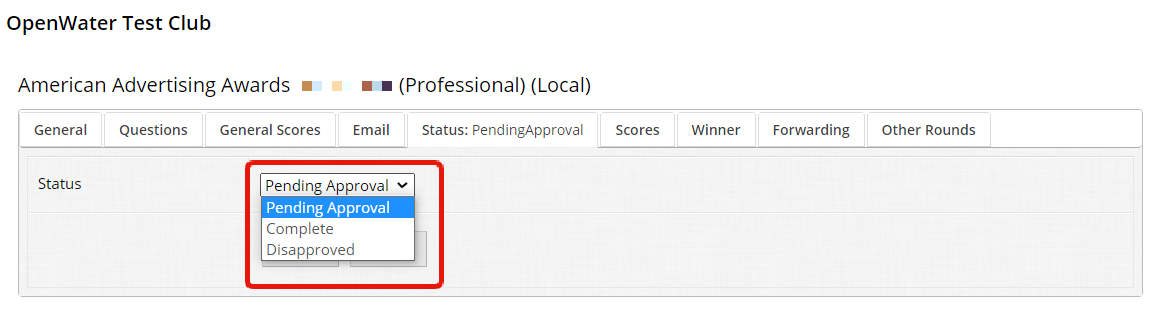
Open the status drop-down and select "Complete" to approve the entry
OROpen the status drop-down and select "Disapprove" to reject the entry