Adding Additional Administrators
Last updated
STEP 1: Navigate to Permissions
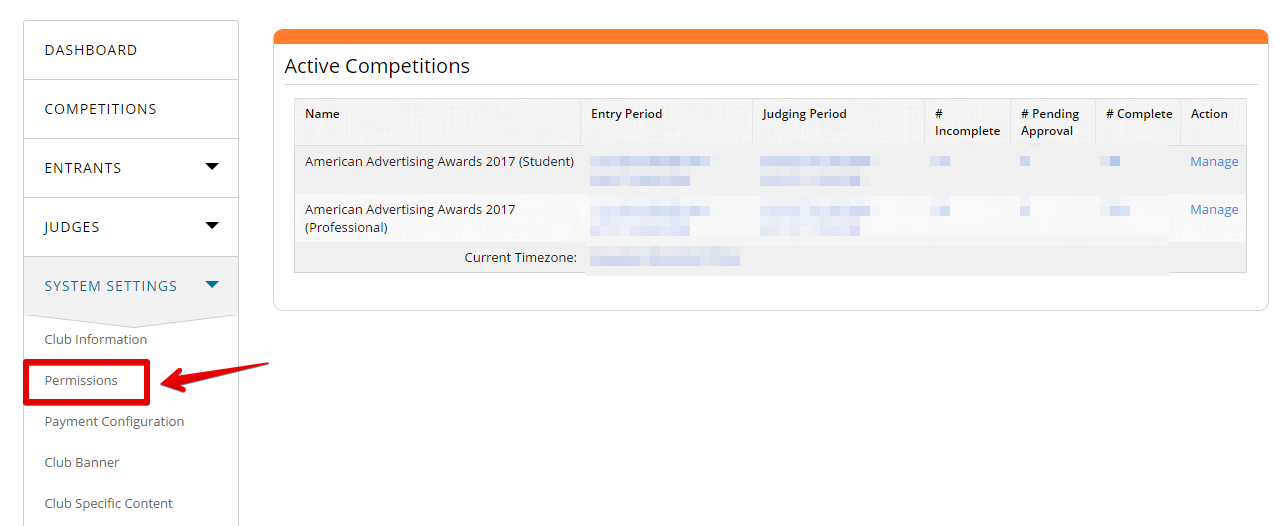
On the left navigation bar, click on SYSTEM SETTINGS to reveal the drop down menu.
Find and click on Permissions
STEP 2: Click Add User
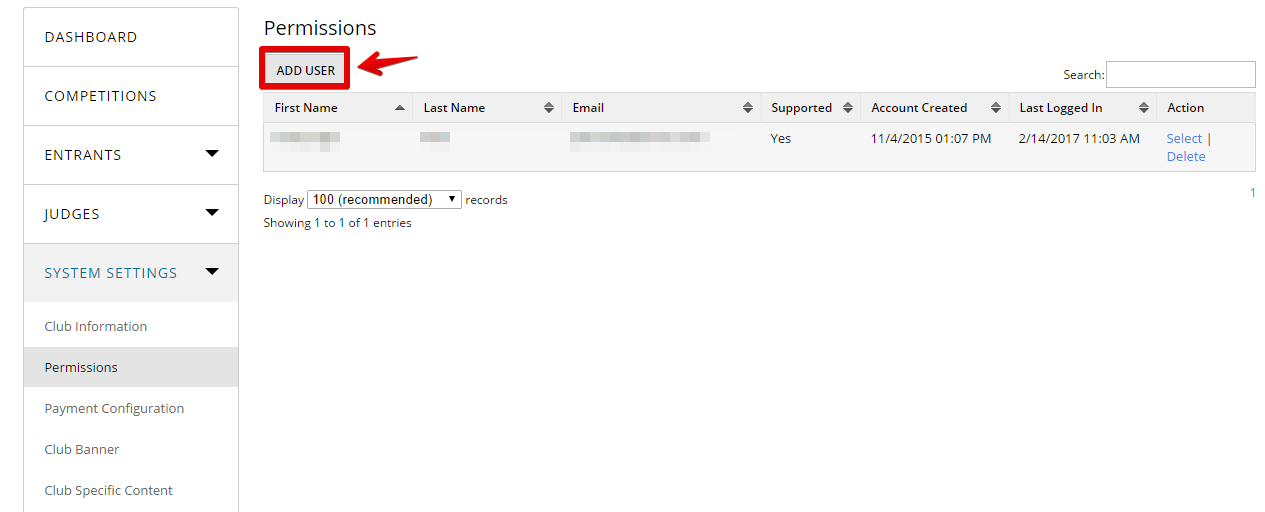
Click the ADD USER button near the top of the form to start adding new user/admin.
STEP 3: Enter the Admin’s Details and choose the actions they can perform
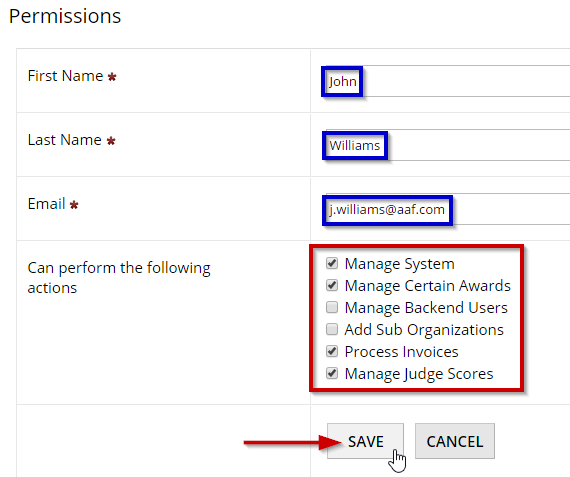
A form will appear, type in the new admin’s First Name, Last Name, and Email Address
Designate which actions this admin may perform by checking/unchecking the boxes
If you need to restrict this admin to a particular program, click here for instructions
STEP 4: Password is auto-generated
Click Save
A password has been auto-generated and emailed to this user.
On the next screen you can manually set their password if you choose to.